
How to Create Login Form for MS Access
Before creating a Login Form, you need to set up a table that can verify the login ID and password on the Login Form. The step of creating Login Form can be followed below:
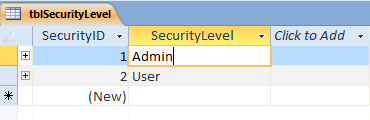
1. Create a table tblSecurityLevel with a SecurityID and SecurityLevel field and add Admin for SecurityID =1 and User for SecurityID =2
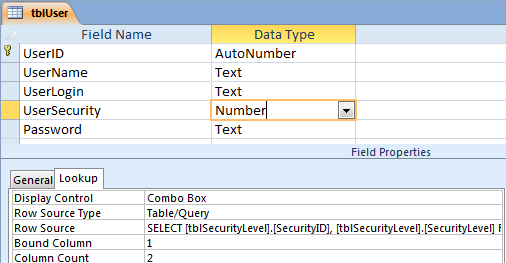
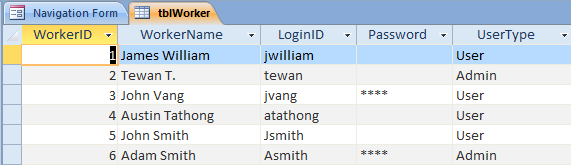
2. Create a table tblWorker with a LoginID, Password and UserType fields. On my database, I setup a table tblWorker that has a UserType field links to a table tlbSecurityLevel. So the data type of a UserType field is number because it refers to the SecurityID (Autonumber) in the tblSecurityLevel table above. You can create the UserType field from the Lookup Wizard on the dropdown of Data Type column.
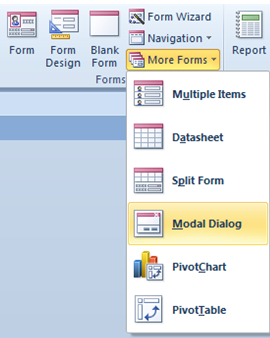
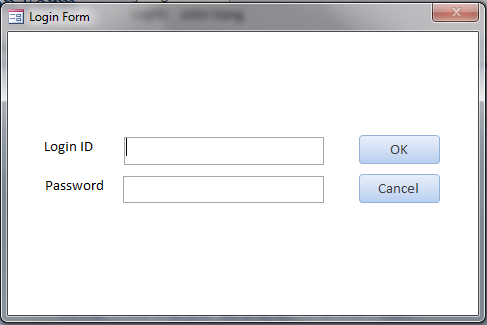
3. Create a Login Form from the Dialoque form design. Then customize the form such as resize, change caption or name form.
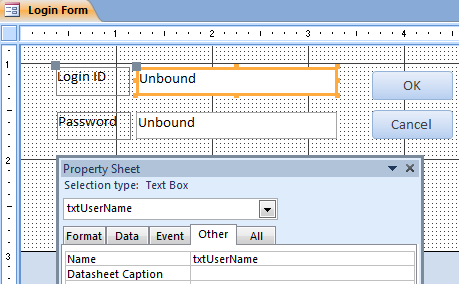
4. Input two text boxes in the Login Form as txtUserName with label Login ID and txtPassword with label Password
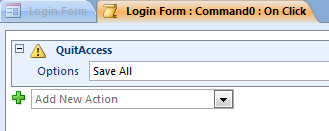
5. Under On Click Event of the Cancel button, add the Embadded Macro with a QuitAccess command to exit the program or Access application
6. Under On Click Event of the OK button, add the VBA code below under the Event Procedure
How the code above works
- Verify if the Login ID and Password both are entered. If not, show a message to enter a Login ID or Password.
- If both Login ID and Password are entered, then verify with table tblWorker if they match.
- If matching, then check if the login user has a temp password = “password”, if yes then close Login Form and open form “frmworkerinfo” to change their password
- If a password is not “password” then verify if the login user is Admin or User.
- If is a Admin, then close Login Form and open a Navigation Form
- If is a user then close Login Form and open a Navigation Form, but disable the Admin button on the navigation bar (NavigationButton13.Enabled = False)
Private Sub Command1_Click()
 Dim User As String
 Dim UserLevel As Integer
 Dim TempPass As String
 Dim ID As Integer
 Dim workerName As String
 Dim TempLoginID As String
 If IsNull(Me.txtUserName) Then
     MsgBox "Please enter UserName", vbInformation, "Username requeired"
     Me.txtUserName.SetFocus
     .....................
    .... DOWNLOAD ACCESS FILE FOR FULL CODE
    .... A little donation is much appreciated
    .....................
     End If
 End If
 End Sub
7. Set a Login Form as a display form when open a database program on the Quick Access Option: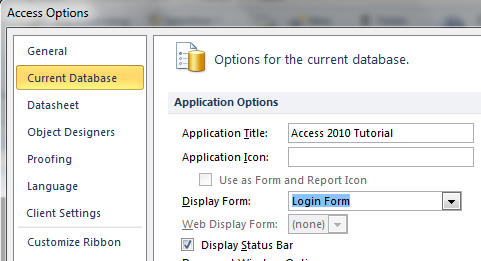
8. On the Navigation Form, create two textboxes and name it as txtLogin and txtUser. If the Login ID and password are correct then will open Navigation Form and pass the Login ID to txtLogin and pass workername to txtUser with code below:
Forms![Navigation Form]![txtLogin] = TempLoginID
Forms![Navigation Form]![txtUser] = workerName
9. If you have a first of Navigation Form is refer to the Login Id or User, it will show the Login user right away unless you click on that tab to refresh data. In this HowTo, I put the BrowseTo command to refresh the first page of Navigation Form because I have a greeting message to the Login user show below:
DoCmd.BrowseTo acBrowseToForm, "frmFirstPage", "Navigation Form.NavigationSubForm", , , acFormEdit
No comments:
Post a Comment
Did you find this helpful, or do you have anything you will like me to help you with. Leave a comment and the pleasure will be mine