These are Past question From Jamb, Noted to likely Repeat it Self.
DO NOT FORGET to leave a comment if this article was helpful.
Happy Reading..................
Tuesday, 12 January 2016
Saturday, 9 May 2015
Business Templets (1)

A great Interface For designing a business/company web sit
Download Business Templets (1)
Friday, 8 May 2015
FREE WEB DESIGN TEMPLETS

Always remember to leave a feedback. for more info. you can follow me on facebook using the follow botton
Thursday, 7 May 2015
Create Login Form: MS Access

How to Create Login Form for MS Access
Before creating a Login Form, you need to set up a table that can verify the login ID and password on the Login Form. The step of creating Login Form can be followed below:
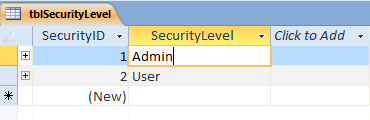
1. Create a table tblSecurityLevel with a SecurityID and SecurityLevel field and add Admin for SecurityID =1 and User for SecurityID =2
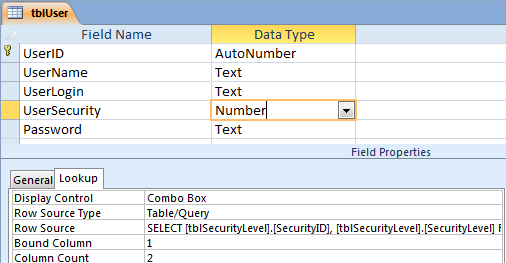
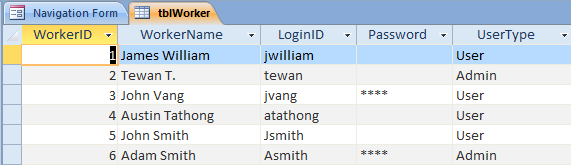
2. Create a table tblWorker with a LoginID, Password and UserType fields. On my database, I setup a table tblWorker that has a UserType field links to a table tlbSecurityLevel. So the data type of a UserType field is number because it refers to the SecurityID (Autonumber) in the tblSecurityLevel table above. You can create the UserType field from the Lookup Wizard on the dropdown of Data Type column.
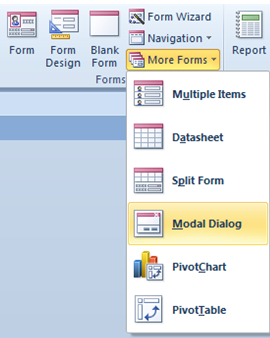
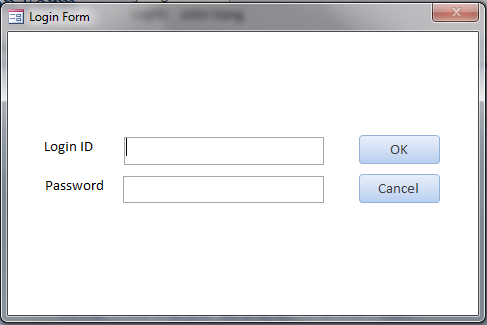
3. Create a Login Form from the Dialoque form design. Then customize the form such as resize, change caption or name form.
4. Input two text boxes in the Login Form as txtUserName with label Login ID and txtPassword with label Password
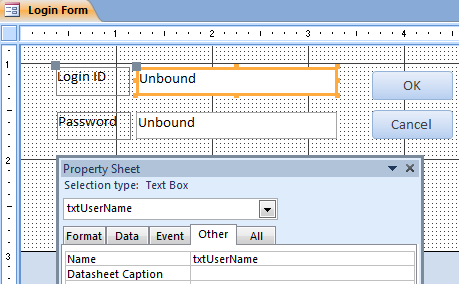
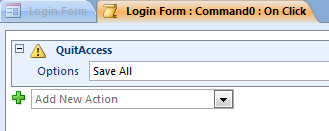
5. Under On Click Event of the Cancel button, add the Embadded Macro with a QuitAccess command to exit the program or Access application
6. Under On Click Event of the OK button, add the VBA code below under the Event Procedure
How the code above works
- Verify if the Login ID and Password both are entered. If not, show a message to enter a Login ID or Password.
- If both Login ID and Password are entered, then verify with table tblWorker if they match.
- If matching, then check if the login user has a temp password = “password”, if yes then close Login Form and open form “frmworkerinfo” to change their password
- If a password is not “password” then verify if the login user is Admin or User.
- If is a Admin, then close Login Form and open a Navigation Form
- If is a user then close Login Form and open a Navigation Form, but disable the Admin button on the navigation bar (NavigationButton13.Enabled = False)
Private Sub Command1_Click()
 Dim User As String
 Dim UserLevel As Integer
 Dim TempPass As String
 Dim ID As Integer
 Dim workerName As String
 Dim TempLoginID As String
 If IsNull(Me.txtUserName) Then
     MsgBox "Please enter UserName", vbInformation, "Username requeired"
     Me.txtUserName.SetFocus
     .....................
    .... DOWNLOAD ACCESS FILE FOR FULL CODE
    .... A little donation is much appreciated
    .....................
     End If
 End If
 End Sub
7. Set a Login Form as a display form when open a database program on the Quick Access Option: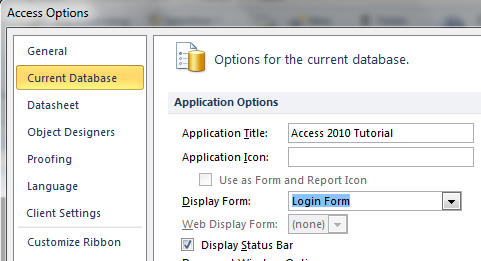
8. On the Navigation Form, create two textboxes and name it as txtLogin and txtUser. If the Login ID and password are correct then will open Navigation Form and pass the Login ID to txtLogin and pass workername to txtUser with code below:
Forms![Navigation Form]![txtLogin] = TempLoginID
Forms![Navigation Form]![txtUser] = workerName
9. If you have a first of Navigation Form is refer to the Login Id or User, it will show the Login user right away unless you click on that tab to refresh data. In this HowTo, I put the BrowseTo command to refresh the first page of Navigation Form because I have a greeting message to the Login user show below:
DoCmd.BrowseTo acBrowseToForm, "frmFirstPage", "Navigation Form.NavigationSubForm", , , acFormEdit
How to Flash a Modem
HOW TO FLASH A HUAWEI USB INTERNET MODEM
STEP 1To download the latest firmware for your Huawei USB modem, please go to DC Files, select Huawei and click as shown below.

On the next page, select the model of your modem and click the small white icon beside it. This will take you to the next page where in the dropdown, you'd be given options to either download the Huawei dashboard software or Firmware update. Select Firmware update and click the small white icon again.


A pop-up would appear asking you to save the firmware to your computer. When the download is complete, you would need to unzip the file to extract the exe application within.
STEP 2
Generate the unlock and flash code for your modem using the Universal Mastercode software. To get this software and codes, read How to Unlock Huawei USB Modems.
Once you get the codes, please copy them on a piece of paper.
STEP 3
Make sure your laptop computer or the UPS of your desktop computer is fully charged or that you have a fueled standby generator at hand.
If a shortage of power supply occurs during the flashing process, your modem will be rendered useless. TAKE NOTE!
STEP 4
Remove any SIM in your Huawei USB modem and plug it into your computer and run the firmware update that you downloaded and extracted from the zip file in Step 1
Accept the agreement terms and proceed.

Wait a minute for the update to scan your usb ports in search of the modem.

Once your Huawei modem has been detected, the software will show the window below. Here you would see your current firmware version and the firmware version of your update (Target Version)

Pay good attention to the warning in the next screen as shown below:

When you're truly ready, click the Start button and you might be asked for the Flash code. Insert the flash code you created in Step 2 and click next.

The update would commence immediately and you're advised to leave your computer alone.

Once the update is over, you'll receive an Update Success notification like that below.

Click on OK and Finish to end the entire process. Detach your modem from your computer and plug it back in. Try connecting to the internet and if everything works fine, you're good to go
 .
.If your modem doesn't survive the firmware update, I don't know how to fix that and I suggest you go get a new one or search Google for a fix.